


Comprehensive Tweaks To Force NVME & Optane Drives Run As Fast As Possible

UPDATED ON: 2026-05-26
1] ALTERNATE OPTANE DRIVER
Although Microsoft provides stock NVME driver in a certain update,
it has some bugs and annoyances, which of course should eliminated.
[Heavily modified driver]
from Win-Raid member Fernando version 3.0.0.1013.
It fixes various bugs and glitches, like phantom duplications of enterprise
Optane P5800x drive in the device manager and provides some boost
in terms of performance and latency.
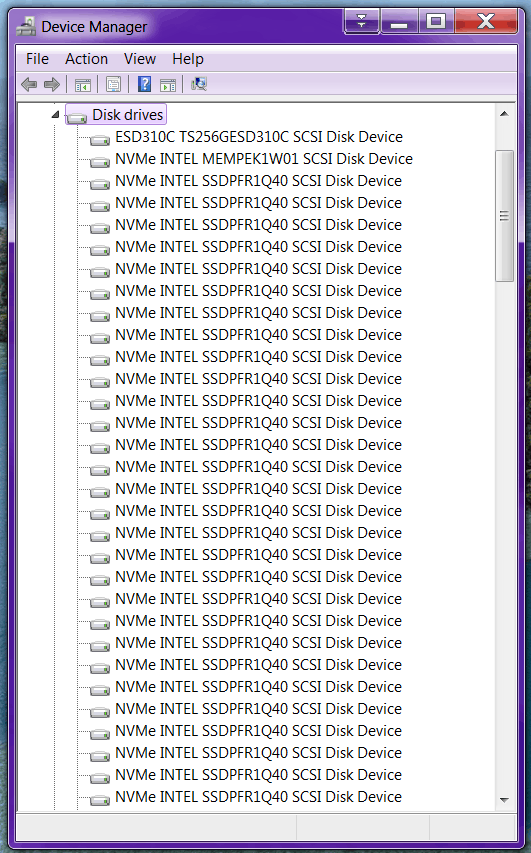
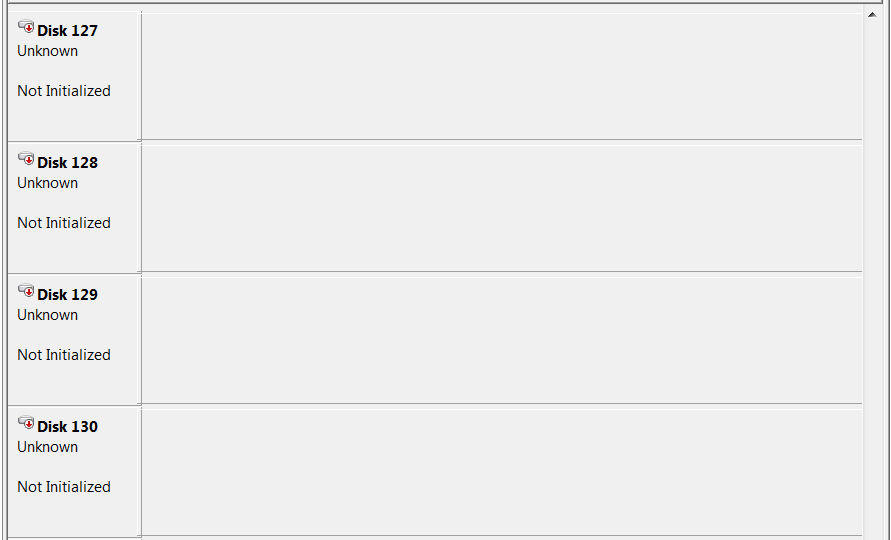
To install modified drivers you should update not the driver of an Optane device,
but the driver of NVME storage controller.
Before updating drivers you should determine the correct controller.
To do this you should check NVME controller properties in the device manager.
To be exact, head on to the details tab and in the property dropdown select HardwareID.
There you will find required information regarding hardware ID.
Here is a convenient table for my configuration.
| Drive | Hardware ID |
|---|---|
| Samsung 980 Pro | PCI\VEN_144D&DEV_A80A |
| Optane P5800X | PCI\VEN_8086&DEV_4140 |
| Optane M10 stick | PCI\VEN_8086&DEV_2522 |
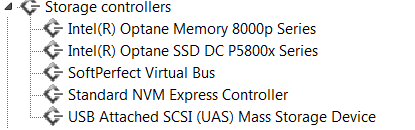
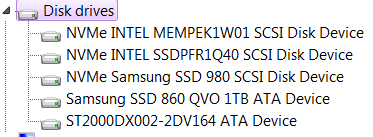
After successful installation of the driver naming convention of the drive should be changed.
As you can see, there are no phantom devices any more.
2] ADVANCED TWEAKS
In terms of tweaks, there are almost nothing new for me,
but here is a list just for a sheer completeness.
What should be disabled, turned off or terminated.
■ BIOS INTERNALS »»
- Disable all C-States
- Disable all P-States
- Turn off PCIe ASPM
■ WINDOWS »»
- Indexing service
- Scheduled defragmentation
- System Restore
- PCIe Link Power Management
- Prefetch/SuperFetch services
- Hybernate/Sleep mode
And of course you should use High Performance power scheme,
or applications like [Park Control]
.
3] THE THING THAT IS NEW FOR ME
We can disable legacy 8.3 naming convention, to speed things up a little bit.
Execute be means of admin elevated command prompt.
fsutil behavior set disable8dot3 1
To re-enable setting just enter 0 instead of 1 in the above mentioned command.
Such behavior could affect Windows 98 software, but since we are Windows 7 users, no worries here.
Oh, and almost forgot, Intel’s [comprehensive guide] on how to make things rollin’,
can be useful especially in the case of Windows 7.
And yeah, you can turn off annoying tooltips in the [settings menu],
just click the `puter located on the main menu and you are there.